Study for your Canvas courses with Cordia Classroom
Cordia Classroom is an AI study tool for Canvas: connect your Canvas account and it brings in your classes, deadlines, grades, announcements and course files.
Then you can turn any course file into a study guide in one tap.
How it works
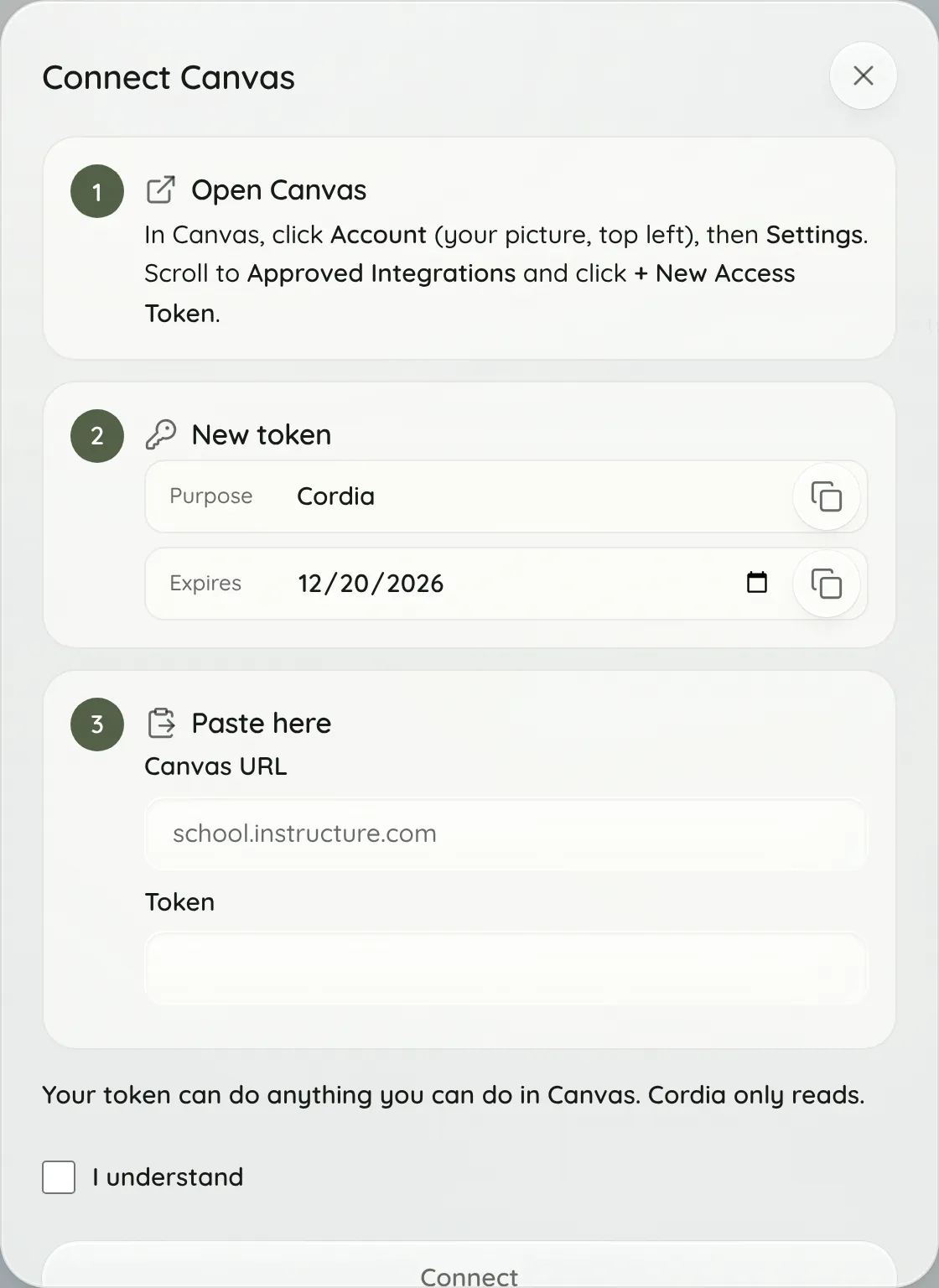
- In Canvas, open Account, then Settings, and choose + New Access Token under Approved Integrations.
- In Cordia, paste your Canvas address and the token, check I understand and choose Connect.
- Choose classes to pick which courses to bring in.
- Open a class to see its course files and grades, and choose Make guide next to any file.
What it looks like
What does Cordia do with Canvas?
It reads your active courses and, for the classes you bring in, their assignments with due dates and what you turned in, your grades, the last two weeks of announcements, and course files.
- Deadlines fill your Cordia calendar, and the Dashboard lists your Upcoming, Missing and Completed work.
- Each class gets a Grades tab with your current grade in Canvas and what upcoming work would take to move it. A drop of 2 or more points becomes an alert.
- New announcements get a short summary, and one that moves a due date becomes a change you confirm.
- Exams are the assignments whose titles say exam, midterm, final or test; Cordia doesn't read Canvas quizzes separately.
- Course files: choose Make guide next to any file except a video, and Cordia reads it and opens it as a new study guide. Files can be up to 50 MB.
- Module auto-import: turn on Bring module files into Library for a class, and its module files and pages go into that class's Library folder, up to 10 new ones each time it checks.
How do I turn a Canvas page into a study guide?
Use the Cordia Classroom Chrome extension on the Canvas page itself.
- Open the Canvas page, file or slides you want to study in Chrome.
- Open Cordia's side panel: choose the Cordia Classroom icon in Chrome's toolbar, or press Ctrl+Shift+Y (Command+Shift+Y on a Mac).
- Choose Make study guide. When it's ready, choose Save to Classroom.
How do I connect Canvas?
Make an access token in Canvas and paste it into Cordia with your Canvas address.
If your school doesn't allow tokens, Cordia says so and offers a calendar link instead: in Canvas, open Calendar, click Calendar Feed in the right sidebar and copy the link ending in .ics, then paste it into Cordia. The calendar link brings in deadlines only, from a week back to 90 days ahead. It can't bring in what you turned in, grades, course files or announcements.
- In Canvas, click Account (your picture, top left), then Settings. Scroll to Approved Integrations and click + New Access Token.
- Use Cordia as the purpose. Cordia suggests an expiry date at the end of your term.
- In Cordia, paste your Canvas address (like school.instructure.com) and the token, check I understand and choose Connect. Cordia checks the token with Canvas before saving it.
Is my Canvas account safe?
Cordia only reads: its Canvas client sends GET requests to a fixed list of read-only Canvas addresses and refuses anything else. Your token is stored encrypted, and the browser never receives it.
- A Canvas token can do anything you can do in Canvas, so the limit is in Cordia's code: GET requests only, only to that list, and only to your school's Canvas address, never redirected to another host.
- What it reads: your profile (to check the token), your active courses and, for classes you bring in, the syllabus and modules, assignments with your submissions, assignment groups and grading scheme, your own enrollment (your current grade), announcements, files and module pages.
- The token is encrypted with AES-256-GCM before it is stored, in a table only the server can read. Cordia shows you only its last 4 characters.
How often does it sync?
Every 20 minutes in the background, and when you open Cordia if 20 minutes have passed since the last sync.
Sync now runs it right away, at most once a minute. Module files for auto-import are checked every 6 hours. A calendar link isn't synced in the background: it is read each time your calendar loads.
Is it the same as a school-installed Canvas integration?
No. Cordia isn't an LTI app or a Canvas partner, and your school doesn't install it: it works through your browser and your own Canvas account.
A school-installed integration (an LTI app) is added by your school's Canvas admin and appears inside your courses. Cordia reads Canvas with the access token you make or your Canvas calendar link, and its Chrome extension reads the Canvas pages you have open.
What if my class isn't on Canvas?
Use the Cordia Classroom Chrome extension on the course page. It works on any course page that opens in Chrome, and knows where the main content sits on Blackboard, Moodle and D2L Brightspace pages.
Canvas is the only learning platform Cordia connects to directly. A Blackboard, Moodle or D2L link pasted into Cordia can't be read from Cordia's server, so open the page in Chrome and use the extension instead.
Who it's for
For example:
- A nursing student connects Canvas at the start of term and sees every deadline from five classes on one calendar.
- A business student turns on module auto-import so each week's readings land in the class's Library folder, then makes a guide from them.
- A history student whose school blocks tokens pastes the Canvas calendar link to bring in deadlines.
Free includes 3 study guides a month. Pro is $4.99 a month and Academic Weapon is $9.99 a month, and new accounts can try Academic Weapon free for 7 days with no card. See pricing
Frequently asked questions
Does my professor see that I use it?
Cordia never posts, submits or sends messages in Canvas: its Canvas client only reads, and it reads only your own enrollment, not class rosters. The token you make is listed in your own Canvas settings with the purpose you gave it.
Can Cordia submit or change anything in Canvas?
No. Cordia's Canvas client allows only GET requests to a read-only list of Canvas addresses and refuses anything else, so it can't submit work, post or change anything.
How do I disconnect?
Go to Settings › Connectors › Canvas and choose Disconnect. Cordia deletes your token and its copy of your Canvas courses and assignments; your classes and guides stay. Then delete the token in Canvas too: Account › Settings › Approved Integrations.
Which plan do I need?
Any plan, including Free: connecting Canvas has no plan limit. Making a study guide from a Canvas file uses one of your monthly study guides (3 a month on Free), and reading a scanned file or photo uses one AI reading action.
What happens when my token expires?
Cordia reminds you from 7 days before the expiry date, and asks you to reconnect if Canvas stops accepting the token.